
SmartData / Inspection Viewer
See the detail.
Keep the context.
Turn drone inspection imagery into a record your team can use. Explore the asset, examine the evidence and make findings clear.
Watch the 51-second viewer walkthroughSample datasets in the demo. Guided walkthroughs for your workflow.
01 / Viewer walkthrough
Navigate the tower.
Mark the detail.
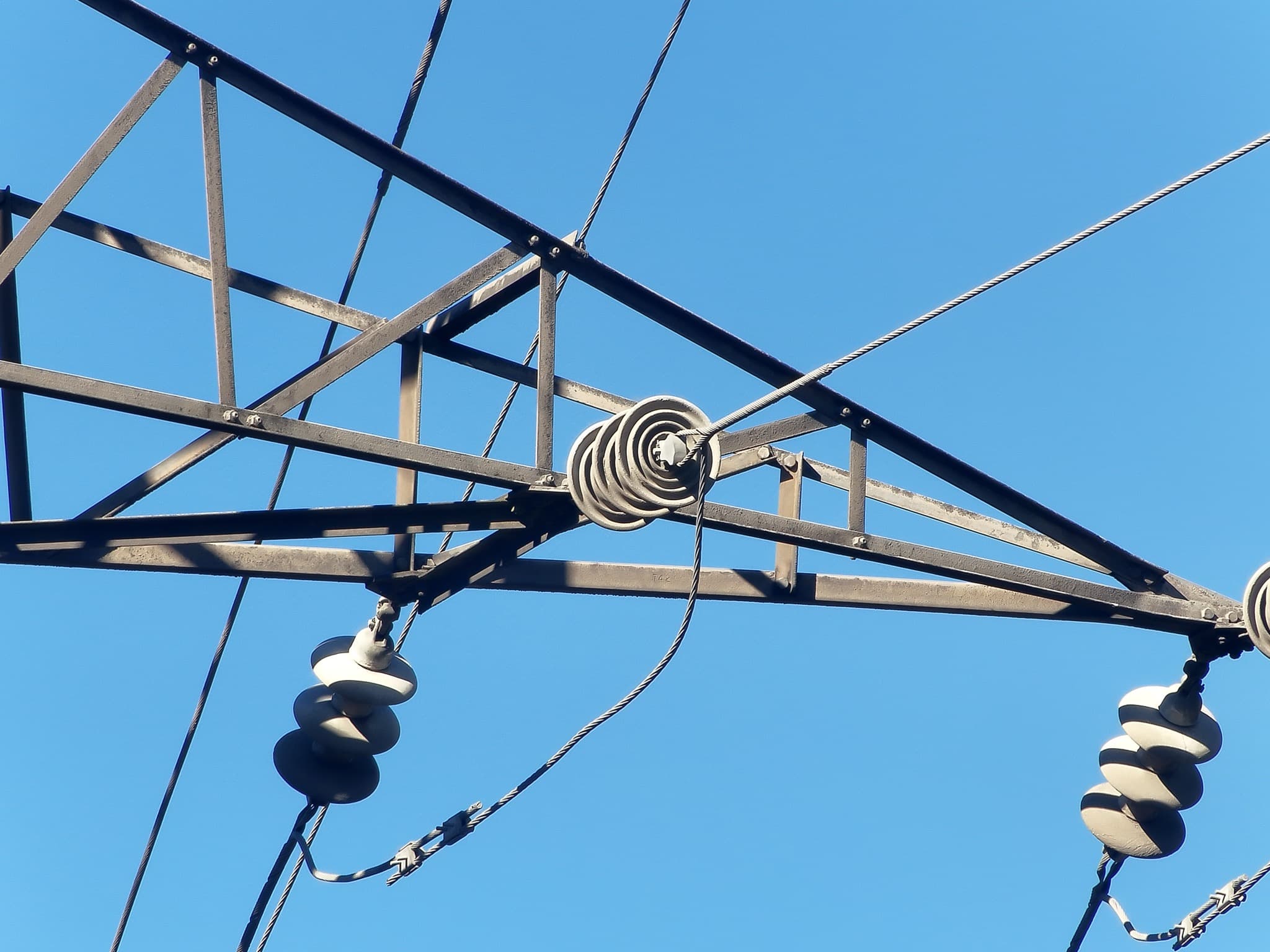
See how the shot plot and linked capture arrows help you move around a tower. Examine a component, then save a title and note with the photo.
51 seconds · Real SmartData footage · Narration and captions
Book a walkthrough02 / Inspection evidence
From the whole site to the detail that matters.
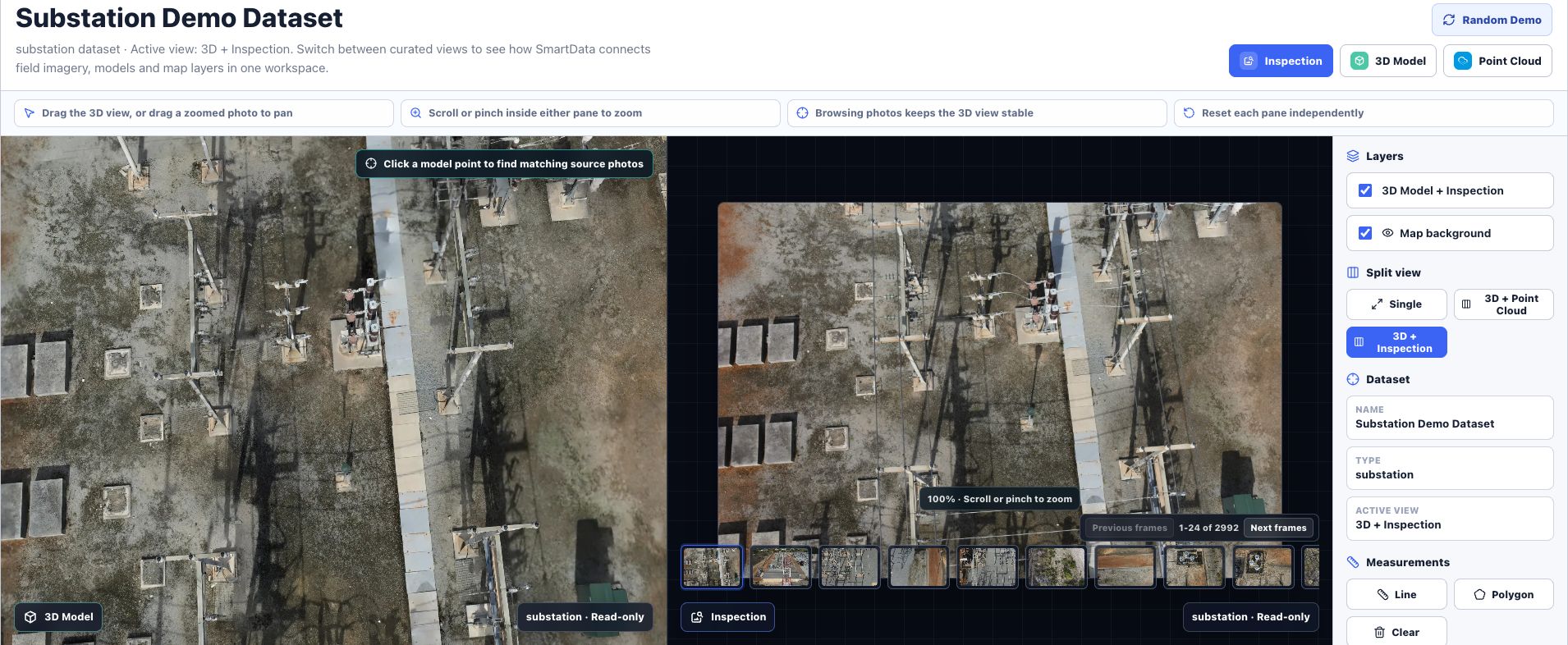
Give engineers, asset managers and reviewers a shared view of the inspection. Keep detailed images connected to the wider asset, with annotations that explain what needs attention.
01
Find the asset
Start with the wider site or structure. Use the spatial record to locate the component you need to examine.
02
Examine the evidence
Move into detailed imagery. Review visible condition and add thermal evidence where the capture supports it.
03
Make the finding clear
Use annotations to mark areas of concern and give your team the context for a human review.
03 / Campaign coordination
A network of assets.
A coordinated review.
The campaign pilot brings scope, captures and named reviewers together. Follow progress from the map to each asset's imagery and assessment.
- 01
Define the scope
Group selected asset captures and set the review template.
- 02
Review each asset
Open pole photos from the campaign map or queue for assessment by named reviewers.
- 03
Track the assessment
Record individual human assessments and see review progress.
Inspection campaigns · Workflow preview
From the map to a recorded review.
Watch the campaign map, photo evidence, and human assessment workflow. The chapter controls let you jump to each step.
75 seconds · Narrated · Captions
Dev demonstration of distribution pole-top and transmission tower review. Campaign review is a pilot workflow. The examples show software behaviour, not an engineering assessment.
04 / RGB & thermal evidence
Bring RGB and thermal
into the same review.
Start with visible condition, then use thermal patterns to guide further review. We're developing component-focused comparison to help reviewers examine individual assets across both views.
RGB
Thermal
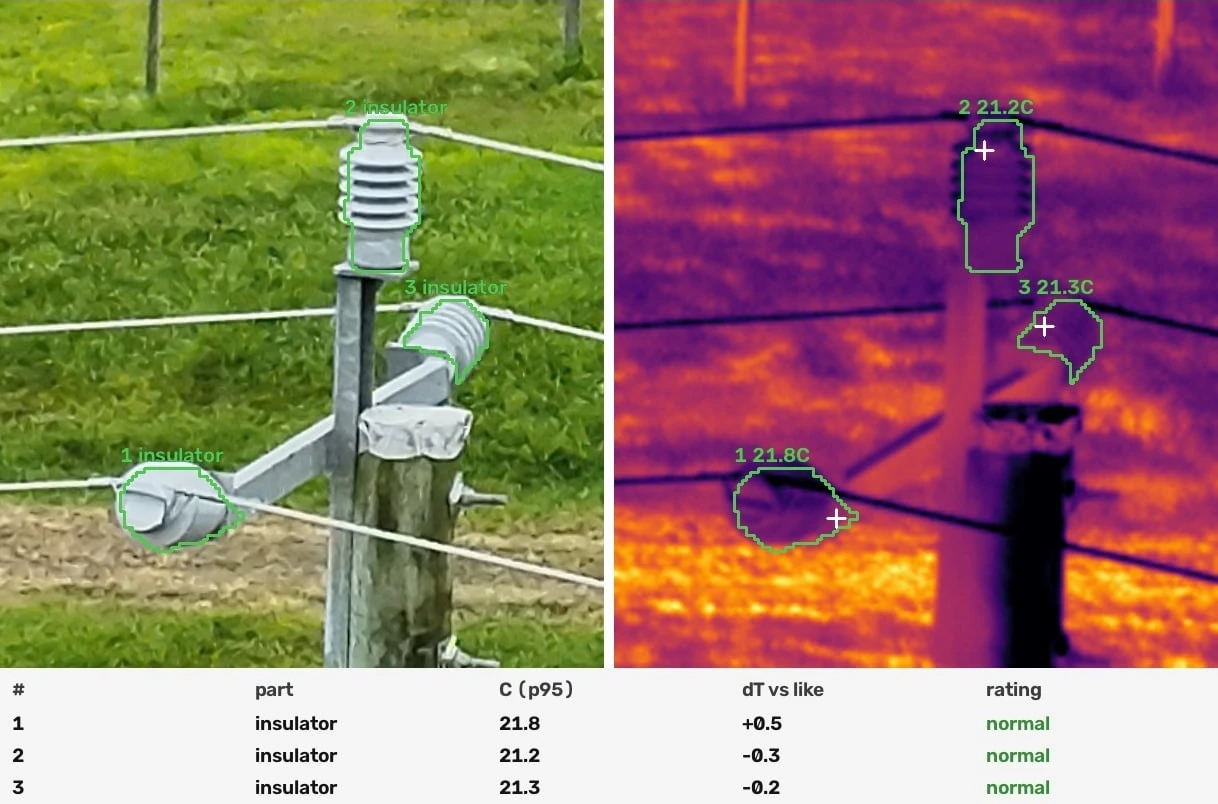
Keep observations tied to the right asset and agree the evidence your team needs. Suitable radiometric captures also support measurements within selected areas.
Talk through RGB and thermalView component readings
| Component | p95 (°C) | ΔT vs like (°C) | Label |
|---|---|---|---|
| Insulator 1 | 21.8 | +0.5 | Normal |
| Insulator 2 | 21.2 | −0.3 | Normal |
| Insulator 3 | 21.3 | −0.2 | Normal |
Campaign coordination is in pilot, and component extraction is experimental. Visuals show independent examples; queue counts illustrate one review state. The component comparison is derived rather than live viewer UI. Its readings require validation and do not establish calibrated temperatures, confirmed defects or engineering sign-off.
Spatial context
Put each component back in context.
A navigable 3D record helps reviewers understand where an antenna, mount or cable sits on the structure before they examine the inspection imagery.
Play the tower model recording to explore the full structure.
Your next inspection
Bring your inspection workflow into focus.
Tell us which assets you inspect, what data you capture and who needs to review it. We'll discuss a practical workflow with your team.
Prefer to explore first?
Open sample datasets in the public SmartData demo. Campaign pilots and experimental analysis need a separate discussion.
Explore public demo (opens in a new tab)Need capture support too? Explore drone inspections